How to Find My IP on Android: Complete 2026 Guide (Private & Public)
Knowing **how to find my IP on Android** is one of those small skills that suddenly becomes essential. Whether you are setting up a smart TV, troubleshooting Wi-Fi, configuring a printer, joining a Minecraft server, or just curious about your online identity, your Android IP address is the answer. The good news: you do not need to be a network engineer. In this complete 2026 guide, we will show you every reliable method to **find IP address on Android phone**, explain the difference between private and public IPs, and answer the questions people ask most often.
Why Your Android IP Address Matters
Your Android device actually has two IP addresses at any moment. The **private IP** (also called local IP or internal IP) is assigned by your Wi-Fi router and used inside your home network. The **public IP** is assigned by your internet service provider (ISP) and is what websites, games, and streaming services see. Both matter — but for very different reasons.
You will need your **private IP on Android** when:
- Casting to a Chromecast, Roku, or smart TV
- Connecting to a network printer
- Setting up a local server (Plex, Home Assistant, web dev)
- Troubleshooting "no internet" or DHCP issues
You will need your **public IP on Android** when:
- Hosting a game server for friends
- Setting up remote access (SSH, RDP, security cameras)
- Checking if a VPN is actually working
- Verifying geolocation for streaming services
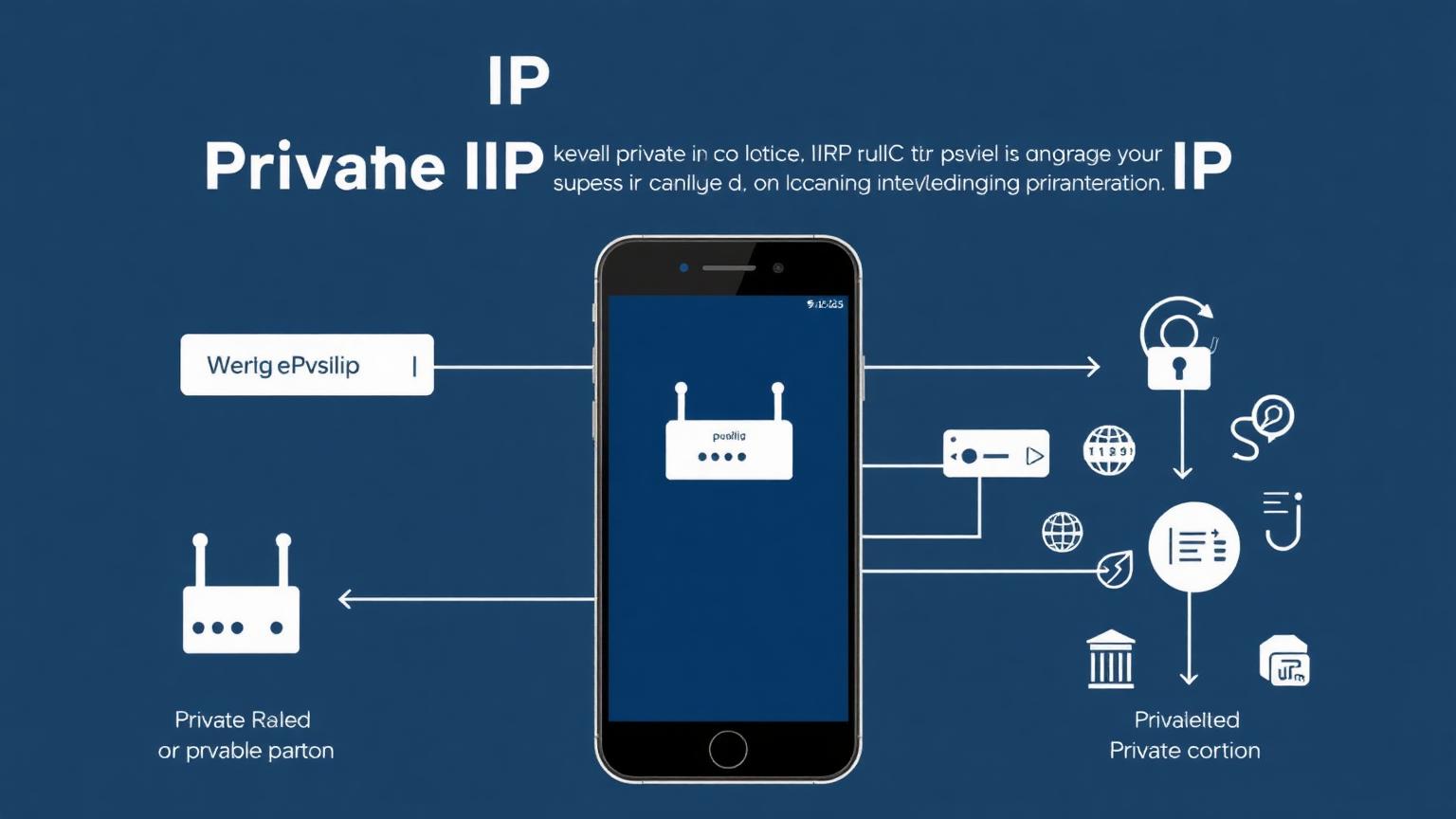
Method 1: Find Your Private IP Address on Android via Wi-Fi Settings
This is the fastest, no-app, no-browser way to **find IP address on Android phone**. The exact wording differs slightly between Samsung One UI, Pixel stock Android, Xiaomi MIUI, and OnePlus OxygenOS, but the path is essentially the same.
**Step-by-step (Android 12, 13, 14, 15):**
1. Open **Settings**.
2. Tap **Network & internet** (or **Connections** on Samsung).
3. Tap **Wi-Fi** or **Internet**.
4. Tap the **gear icon** (⚙️) next to the network you are connected to.
5. Scroll down to find **IP address**, **Gateway**, **Subnet mask**, and **DNS**.
You will typically see something like `192.168.1.42` or `10.0.0.15`. That is your **local IP on Android** — the address your router uses to talk to your phone.
On older devices, the path is **Settings → About phone → Status → IP address**, which shows both IPv4 and IPv6 addresses.
Method 2: Find Your Public IP on Android Using a Browser
Your private IP is invisible to the outside world. To see what the internet sees, you need to check your **public IP**.
1. Open Chrome, Brave, Firefox, or any browser on your Android.
2. Go to a trusted IP lookup site such as **ipfinderhub.lovable.app** or simply Google "what is my IP".
3. Your public IPv4 (and often IPv6) address appears instantly, along with location, ISP, and ASN data.
This is hands-down the easiest way to **check public IP on Android** and it requires zero installation. It is also the only correct way to verify a VPN — if the IP shown matches your VPN server's country, your tunnel is working.
Method 3: Use a Trusted IP Address App
If you check your IP often (network admins, developers, privacy-conscious users), a dedicated app saves time. Look for free, ad-light apps in the Play Store like:
- **IP Tools: WiFi Analyzer**
- **Network Info II**
- **Fing — Network Tools**
These apps show your private IP, public IP, MAC address, gateway, DNS servers, and connected devices in one screen. Always check permissions before installing — a flashlight-style "IP checker" asking for contacts is a red flag.
Method 4: Find Your Android IP from a Computer
If your phone screen is broken or you are managing many devices, you can find any Android's local IP from your router's admin page:
1. Open `192.168.1.1` or `192.168.0.1` in any browser on the same network.
2. Log in (the password is often on a sticker on the router).
3. Open **Connected Devices**, **Client List**, or **DHCP Clients**.
4. Find your phone by name (e.g., "Galaxy-S24") to see its IP.
Method 5: Termux for Power Users
Developers can install **Termux** from F-Droid and run real Linux commands to **find IP address on Android**:
- `ip addr show wlan0` — shows IPv4 and IPv6 on Wi-Fi
- `ifconfig` (after `pkg install net-tools`) — classic interface listing
- `curl ifconfig.me` — instantly returns your public IP
This is the closest you get to a desktop terminal experience on Android.
Private IP vs Public IP on Android: Quick Comparison
| Feature | Private IP | Public IP |
|---|---|---|
| Assigned by | Your router (DHCP) | Your ISP |
| Visible to internet | No | Yes |
| Typical format | 192.168.x.x / 10.x.x.x | Anything outside private ranges |
| Use case | LAN devices, casting, printing | Hosting, remote access, geolocation |
| Changes when | You reconnect to Wi-Fi | ISP renews lease or you use a VPN |
How to Hide or Change Your Android IP Address
Once you know your IP, the natural next question is privacy. Your **public IP on Android** can reveal your approximate city, ISP, and time zone. To change or hide it:
- **Use a VPN**: Apps like Mullvad, ProtonVPN, or NordVPN reroute traffic through a server in another country, replacing your public IP.
- **Use Tor (Orbot)**: Strongest privacy, slower speeds.
- **Mobile data switch**: Turning off Wi-Fi and using 4G/5G gives you a different IP from your ISP.
- **Airplane mode toggle**: On mobile data, toggling airplane mode often forces a new public IP from your carrier.
- **Restart your router**: At home, this often gives you a new public IP after the lease renews.
For your **private IP on Android**, you can set a static IP under **Wi-Fi → Advanced → IP settings → Static**, useful for port forwarding or always-on home servers.
Common Issues When Finding IP on Android
- **"IP address unavailable"**: Forget the Wi-Fi network and reconnect. This usually fixes DHCP failures.
- **Two IPs shown (IPv4 and IPv6)**: Normal. Most home networks now run dual-stack.
- **Public IP looks foreign**: A VPN, proxy, or Private DNS is active.
- **IP keeps changing**: Most ISPs assign **dynamic IPs**. For a fixed address, request a static IP (often a paid add-on).
Frequently Asked Questions (FAQ)
### How do I find my IP address on Android quickly?
Go to **Settings → Network & internet → Wi-Fi**, tap the gear icon next to your network, and scroll to **IP address**. That is your private IP. For your public IP, search "what is my IP" in any browser.
### Why does my Android IP start with 192.168?
Because `192.168.x.x` is a reserved private IP range defined by RFC 1918. Your router uses it for every device on your home network. It is not visible on the public internet.
### Can someone track me using my Android IP?
Your **public IP** can reveal your city, ISP, and rough region — not your home address. Your **private IP** is only visible inside your local network. To reduce tracking, use a reputable VPN.
### Is it safe to share my Android IP address?
Sharing your private IP (192.168.x.x) is harmless. Sharing your public IP is low-risk for normal users but can be used for targeted attacks (DDoS, port scanning), so avoid posting it publicly on streams or forums.
### Why does my Android show two IP addresses?
One is **IPv4** (e.g., 192.168.1.42) and the other is **IPv6** (e.g., 2401:4900::abcd). Modern networks run both protocols simultaneously. Both are correct.
### How do I find my IP address on Android without an app?
Use the built-in **Settings → Wi-Fi → gear icon** path for your private IP, or open a browser and visit any IP lookup website for your public IP. No app needed.
### Does turning on a VPN change my Android IP?
Yes — your **public IP** changes to the VPN server's IP, masking your real location. Your **private IP** stays the same because it is assigned by your home router.
### How do I find another device's IP on my Android Wi-Fi?
Install a network scanner app like **Fing** or **IP Tools**, or log in to your router's admin page and check the **DHCP client list**.
Final Thoughts
Now you know exactly **how to find my IP on Android** — both the **private IP** for local network tasks and the **public IP** for everything that touches the internet. Bookmark a reliable IP lookup tool like IP Finder Hub, learn the Settings shortcut, and you will never be stuck troubleshooting a Wi-Fi or VPN issue again. Stay curious, stay private, and remember: the more you understand your IP address, the more control you have over your digital life.