How to Find My IP on Windows: The Complete 2026 Guide
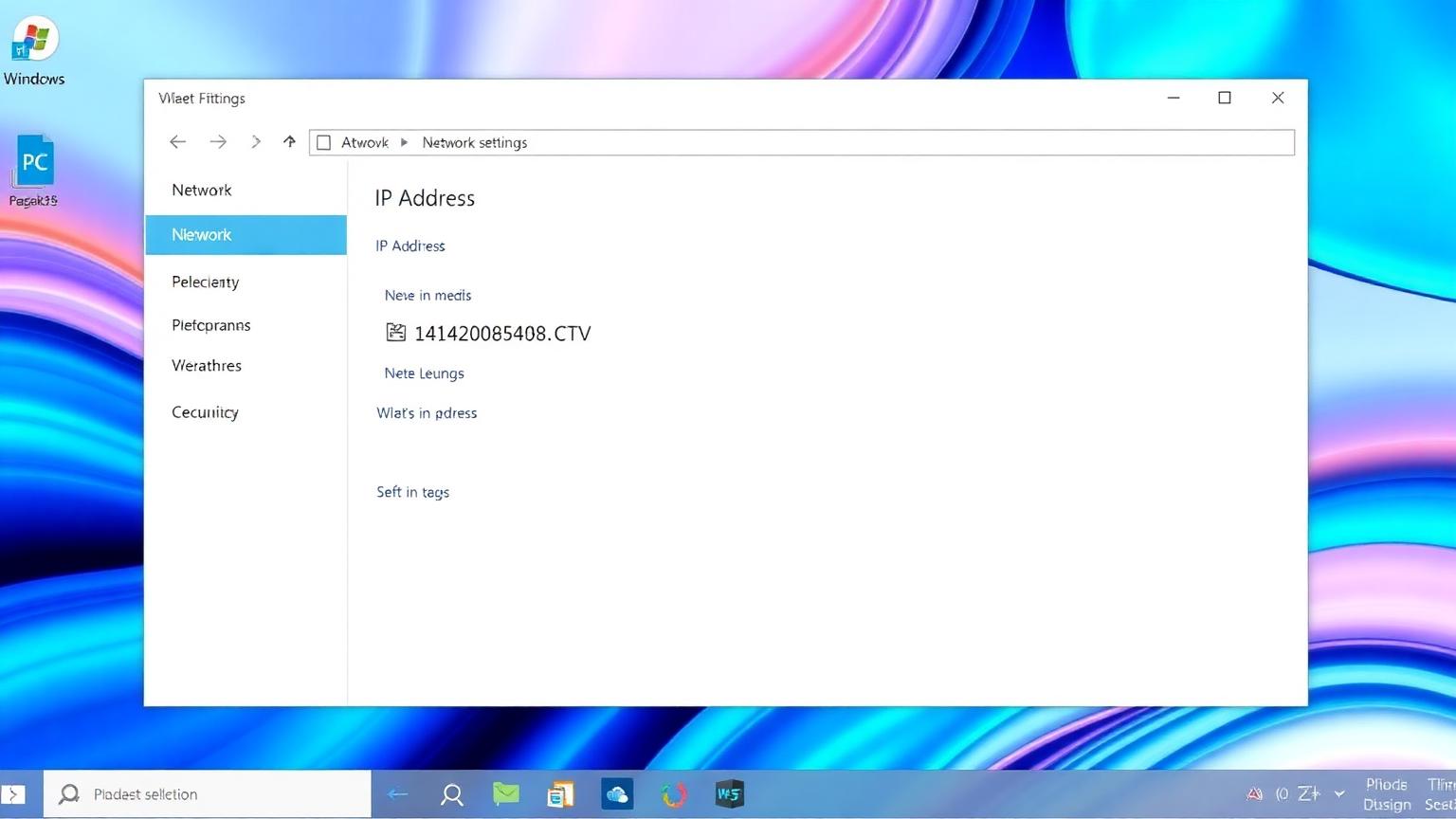
Knowing **how to find my IP on Windows** is one of the most useful networking skills any PC user can have. Whether you are setting up a home server, troubleshooting a Wi-Fi connection, configuring a VPN, hosting a multiplayer game, or simply checking what address your ISP assigned you, locating your **Windows IP address** takes less than a minute when you know where to look. In this complete guide, you will learn every reliable method to find your **public IP** and **private IP** on Windows 10 and Windows 11 — using the Settings app, Command Prompt, PowerShell, Control Panel, and online lookup tools.
What Is an IP Address on Windows?
An **IP address** (Internet Protocol address) is a unique numeric label assigned to your Windows PC so it can communicate on a network. Every Windows machine actually has two IP addresses you should know about:
- **Private IP address** — assigned by your router (e.g., `192.168.1.10`). Used inside your home or office network.
- **Public IP address** — assigned by your Internet Service Provider (ISP). It identifies your network to the rest of the internet.
When people ask "how do I find my IP on Windows," they usually mean one of these two — and the method differs depending on which one you need.
Method 1: Find Your IP on Windows Using Settings (Easiest)
The fastest way to find your **local IP address on Windows 11** is through the modern Settings app:
1. Press **Windows + I** to open Settings.
2. Click **Network & internet**.
3. Select **Wi-Fi** (or **Ethernet** if connected by cable).
4. Click your active network's **Properties**.
5. Scroll down to find **IPv4 address** and **IPv6 address**.
On Windows 10, the path is nearly identical: **Settings → Network & Internet → Status → Properties**. This shows your **internal IP** assigned by the router along with the subnet mask, default gateway, and DNS servers.
Method 2: Find Your IP on Windows Using Command Prompt (ipconfig)
The classic and most powerful method is the **ipconfig** command. Network administrators have used it for decades because it works on every version of Windows.
Steps:
1. Press **Windows + R**, type `cmd`, and hit Enter.
2. In the Command Prompt window, type:
`ipconfig`
3. Press Enter.
You will see output similar to this:
`Wireless LAN adapter Wi-Fi: IPv4 Address. . . . . . . . . . . : 192.168.1.42 Subnet Mask . . . . . . . . . . . : 255.255.255.0 Default Gateway . . . . . . . . . : 192.168.1.1`
For more verbose results — including MAC address, DHCP server, and lease times — use:
`ipconfig /all`
This is the gold-standard answer to "**how to find my IP on Windows using cmd**."
Method 3: Find Your IP on Windows Using PowerShell
PowerShell offers a more modern and scriptable approach. Open PowerShell (right-click Start → **Windows Terminal** or **PowerShell**) and run:
`Get-NetIPAddress -AddressFamily IPv4`
Or for a cleaner view of just your active interface:
`Get-NetIPConfiguration`
PowerShell is ideal if you need to extract the IP into a script, log file, or automation pipeline.
Method 4: Find Your IP on Windows Using Control Panel
For users who prefer the legacy interface:
1. Open **Control Panel → Network and Sharing Center**.
2. Click **Change adapter settings**.
3. Right-click your active connection → **Status → Details**.
4. Look for **IPv4 Address** in the list.
This method works identically on Windows 7, 8, 10, and 11.
Method 5: Find Your Public IP on Windows (Online)
The methods above only show your **private IP** — the one your router gave your PC. To find your **public IP address on Windows**, you need an external service because your PC itself does not know what address the world sees.
The simplest way:
- Open any browser (Edge, Chrome, Firefox).
- Visit a free tool like **IP Finder Hub** or type "what is my IP" into Google.
Within a second you will see something like `203.0.113.45` — your **public IP** as assigned by your ISP. You can also use the command line:
`curl ifconfig.me`
Or in PowerShell:
`(Invoke-WebRequest -Uri "https://api.ipify.org").Content`
Public IP vs Private IP on Windows
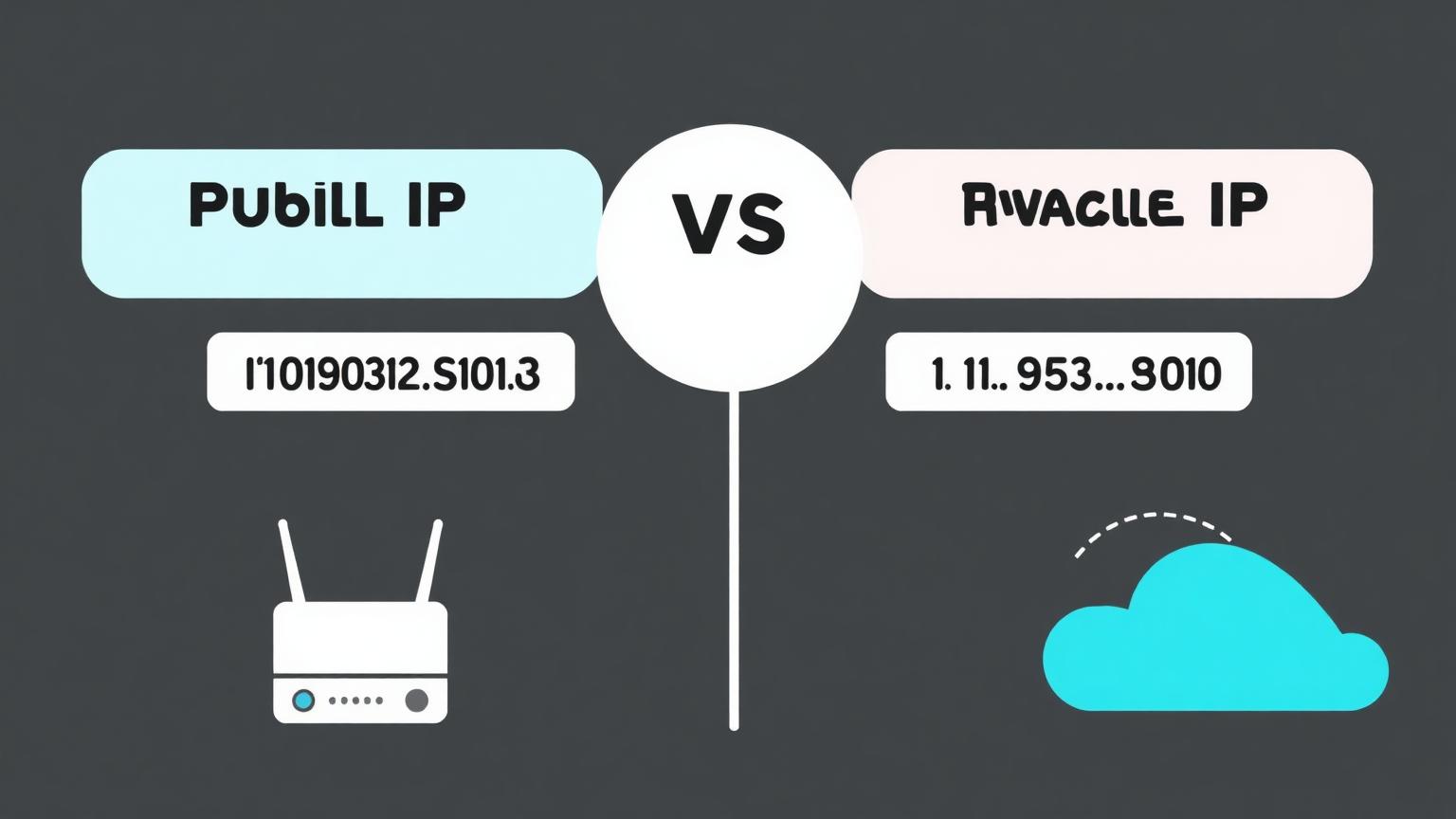
Understanding the difference is essential when troubleshooting:
- **Private IP (Local IP / Internal IP)** — Format: `192.168.x.x`, `10.x.x.x`, or `172.16.x.x` to `172.31.x.x`. Visible only inside your network. Used for printers, file sharing, Remote Desktop, and game LAN.
- **Public IP (External IP)** — Format: anything outside the private ranges. Visible to every website you visit. Used for port forwarding, hosting servers, and remote access from outside your home.
If you are configuring port forwarding on your router, you need both: your PC's **private IP** for the rule, and your **public IP** to reach your PC from the internet.
Why You Might Need to Find Your Windows IP
Common scenarios where users search "**how to find my IP on Windows**":
- Setting up **Remote Desktop** or **SSH** access.
- Configuring **port forwarding** for gaming (Minecraft, Call of Duty) or self-hosted apps.
- Connecting a **wireless printer** or **NAS device**.
- Troubleshooting "**no internet access**" or DNS errors.
- Setting up a **VPN** (NordVPN, ExpressVPN, WireGuard).
- Whitelisting your IP on a server or firewall.
- Verifying that your VPN is actually masking your **public IP**.
How to Hide Your IP Address on Windows
If your goal is privacy, finding your IP is just step one. To hide your **Windows public IP**:
- Use a reputable **VPN** — it routes traffic through an encrypted server, replacing your public IP.
- Use the **Tor Browser** for anonymous browsing.
- Use a **proxy server** for application-specific masking.
After connecting, repeat Method 5 above to confirm your public IP has changed.
Frequently Asked Questions
### How do I find my IP address on Windows 11 quickly?
Press **Windows + I**, go to **Network & internet → Wi-Fi → Properties**, and look at the **IPv4 address** field. The fastest CLI method is to press **Windows + R**, type `cmd`, then run `ipconfig`.
### Why does my Windows IP start with 192.168?
Addresses starting with `192.168` are **private IP addresses** defined by RFC 1918. They are not routable on the internet and are reserved for use inside home and office networks. Your router assigns them via DHCP.
### What is the difference between IPv4 and IPv6 on Windows?
**IPv4** uses 32-bit addresses like `192.168.1.10`. **IPv6** uses 128-bit hexadecimal addresses like `2001:0db8::1`. Modern Windows PCs have both enabled by default. IPv6 was introduced because the world ran out of unique IPv4 addresses.
### How do I find my public IP on Windows without a browser?
Open Command Prompt and run `curl ifconfig.me`, or in PowerShell run `(Invoke-WebRequest -Uri "https://api.ipify.org").Content`. Both return your public IP as a single line of text.
### Can someone find my Windows IP address?
Websites you visit automatically see your **public IP**. Your **private IP** stays hidden inside your network. To minimize exposure, use a VPN, keep Windows Firewall enabled, and never share screenshots of `ipconfig` output publicly.
### Does my IP address change on Windows?
Most home ISPs assign **dynamic IPs**, meaning your public IP can change after a router reboot or lease renewal. Your private IP can also change if your router uses DHCP. To set a fixed local IP, configure a **static IP** in Settings → Network → Properties → IP assignment → Edit.
### How do I find my router IP on Windows?
Run `ipconfig` in Command Prompt and look at **Default Gateway** — that's your router's IP, typically `192.168.0.1` or `192.168.1.1`. Type it into a browser to access router admin settings.
Final Thoughts
Finding your IP on Windows is a fundamental skill for troubleshooting, gaming, remote work, and privacy. Use **Settings** or **ipconfig** for your **private IP**, and a tool like **IP Finder Hub** for your **public IP**. Bookmark this guide so you always have the right command at your fingertips — and remember that if privacy matters to you, a trustworthy VPN is the easiest way to take control of what your IP reveals.